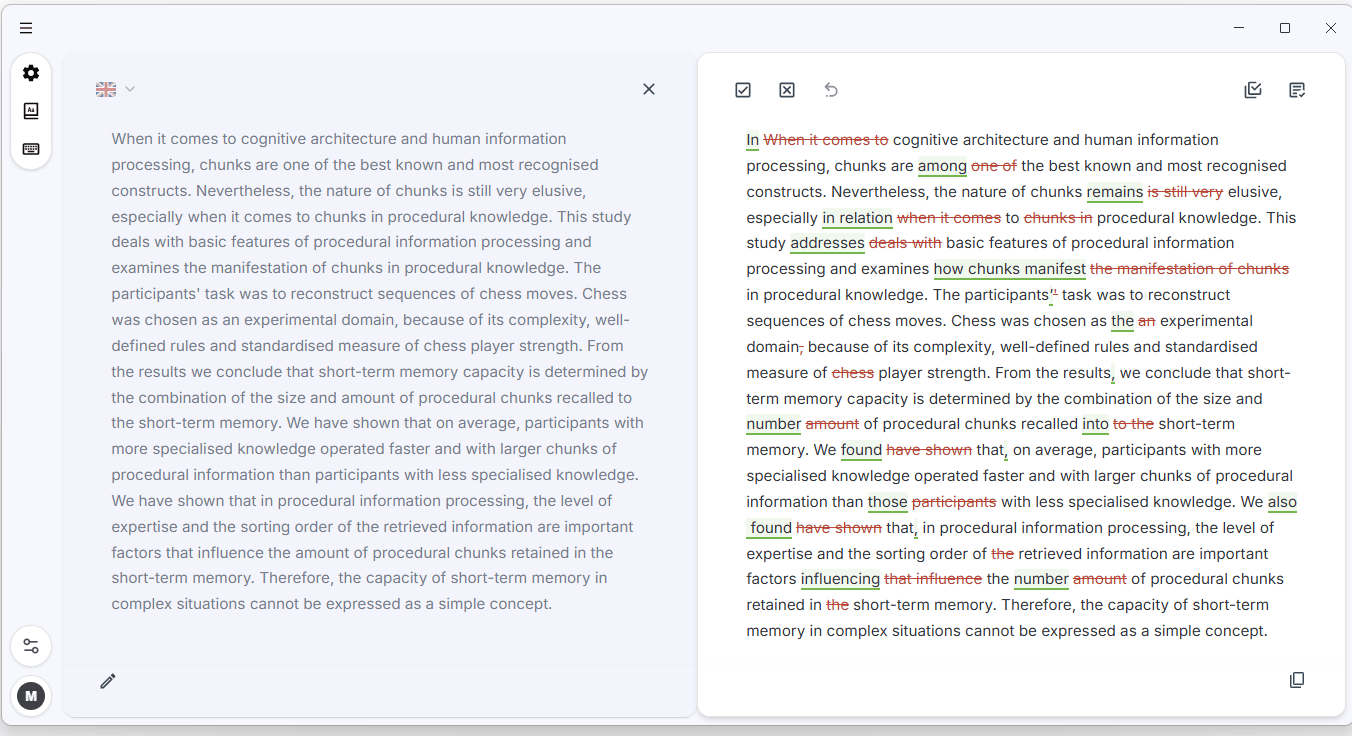
Editor view
Your original text and the improved version side by side, with every change tracked - accept or reject each one.
Early access
InstaText in your local applications - Word, Outlook, Teams, LaTeX editors - across every program you write in.
For Windows 10 and 11 · macOS coming soon
First run on Windows
The first time you run the installer, Windows will show a blue “Windows protected your PC” screen. Microsoft shows this for every newly released app until it builds a reputation with enough installs. Click More info to see our verified publisher signature, InstaText d.o.o., then click Run anyway.
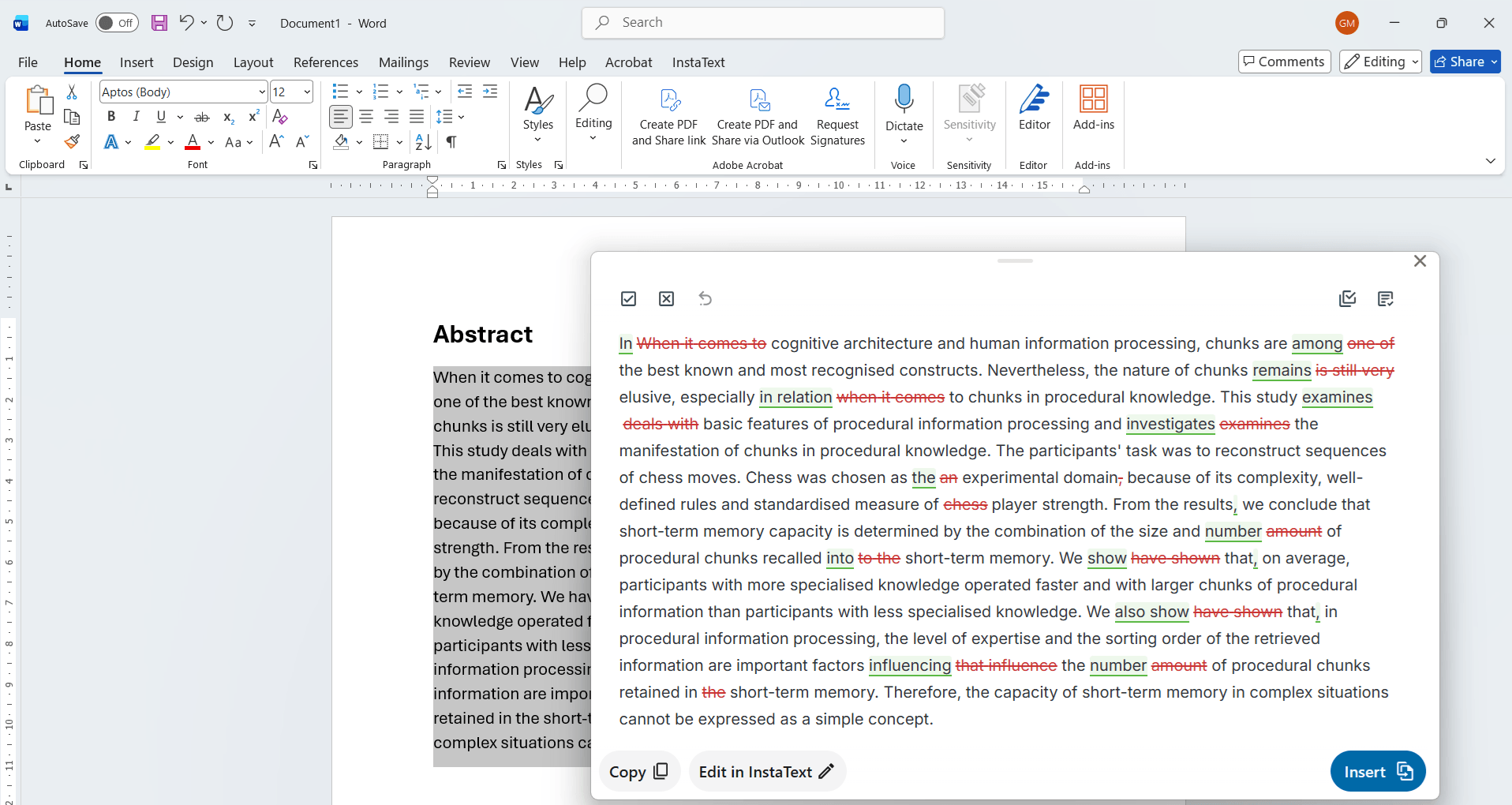
The app
Your original text and the improved version side by side, with every change tracked - accept or reject each one.
Opens over whatever you're writing in - review the improvements and insert them without leaving your document.
Getting started
In Word, Outlook, Teams - any program you write in.
Click the Improve button that appears, or press Ctrl+D.
Review the changes and insert the improved text back where you were writing.
The desktop app is new and improving quickly - you'll always be offered the latest version, and installing it takes one click. If something doesn't work the way you expect, let us know.
Download for WindowsWindows will ask you to confirm the first run. Click More info to see our verified publisher signature (InstaText d.o.o.), then Run anyway.