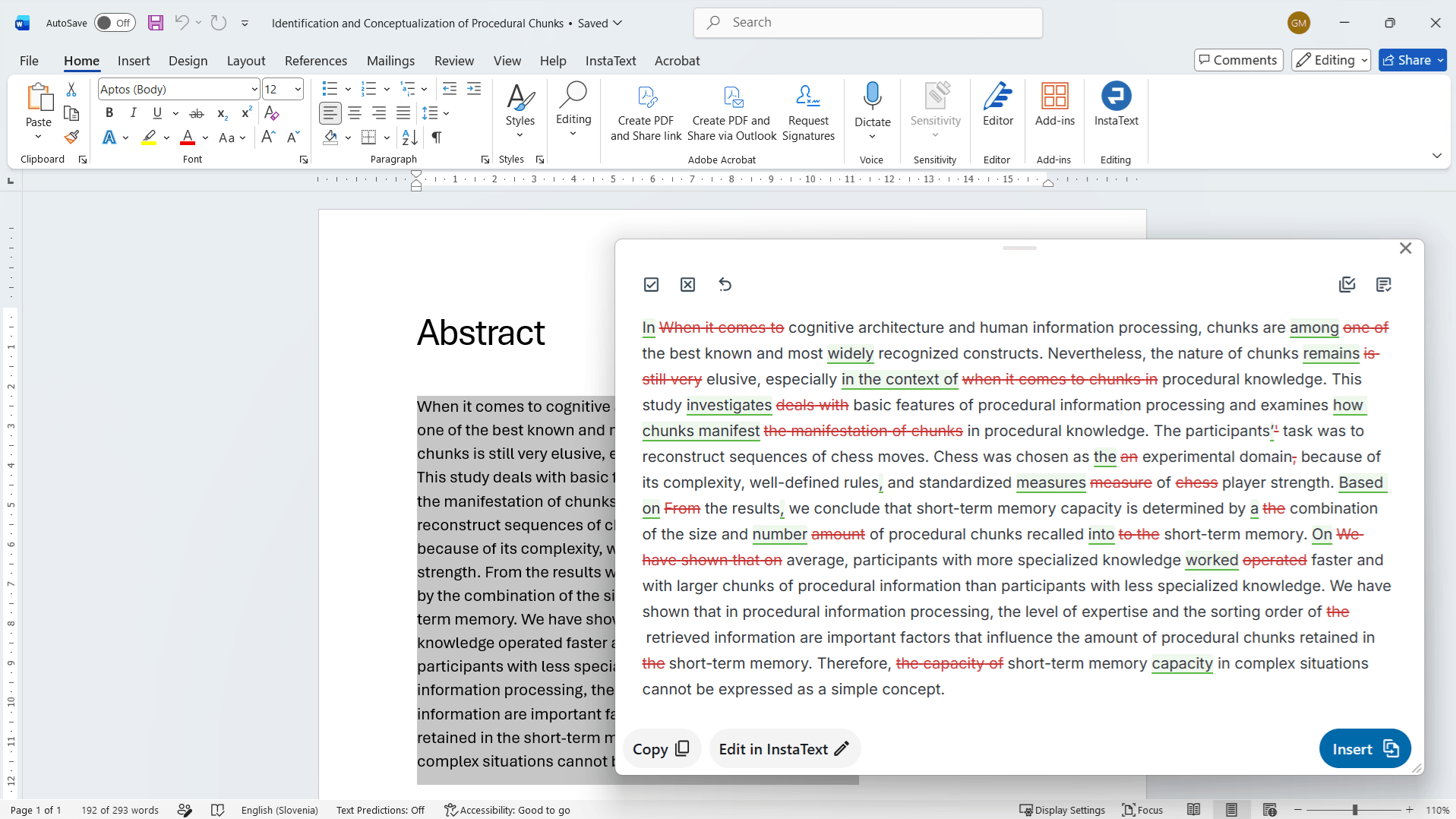
The InstaText desktop application brings InstaText directly into the applications you already write in across your computer, such as Word, Outlook, Chrome, Edge, Google Docs, Gmail, and others.
This means you can improve your writing where you are already working, without moving text into a separate web editor or relying on a browser-based integration.
It also brings familiar InstaText features from the web editor into the desktop experience, including language settings, tone adjustment, Personal Dictionary, and keyboard shortcuts.
The desktop application requires an internet connection and is currently in early access for Windows 10 and 11, with macOS coming soon.
Available with your InstaText account, including the free plan.
Note: Windows may show a blue “Windows protected your PC” screen for newly published applications. Click More info, confirm that the publisher is InstaText d.o.o., then click Run anyway.
On first launch, sign in with your InstaText account.
Improve text in three steps
Using the InstaText desktop application is straightforward:
- Select text. Highlight the text you want to improve.
- Improve. Click Improve or press Ctrl+D on Windows.
- Review and apply. Review the suggestions, accept or reject the changes you want, and apply the improved text.
The same three steps work the same way in every program.
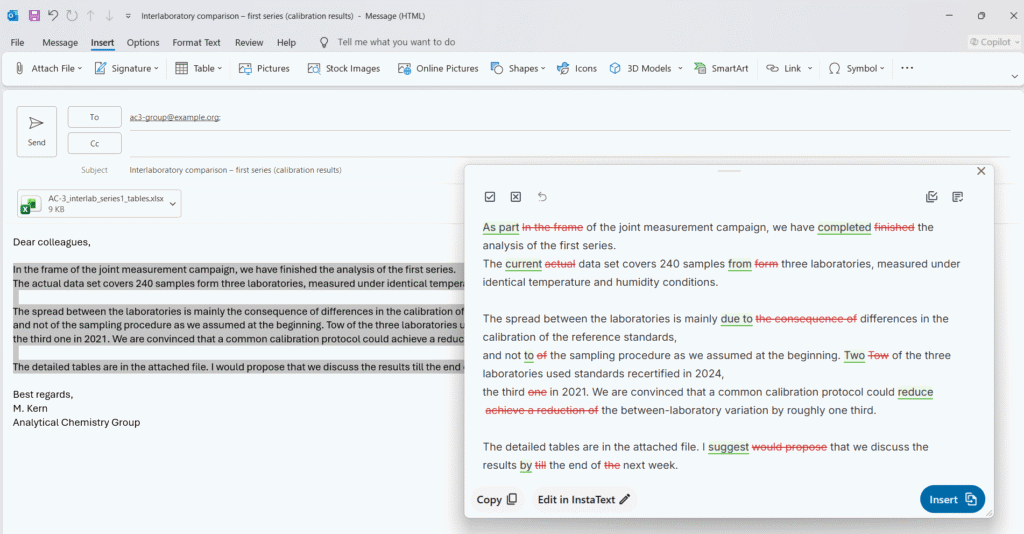
No prompts. No guesswork.
InstaText uses the text you select to suggest improvements to clarity, readability, flow, word choice, and more, while you decide which changes to accept or reject.
Note: The default shortcut is Ctrl+D on Windows. On macOS, once available, the default shortcut will be Cmd+D. You can customise the shortcut in Settings.
Two ways to work
Choose the view that fits the task:
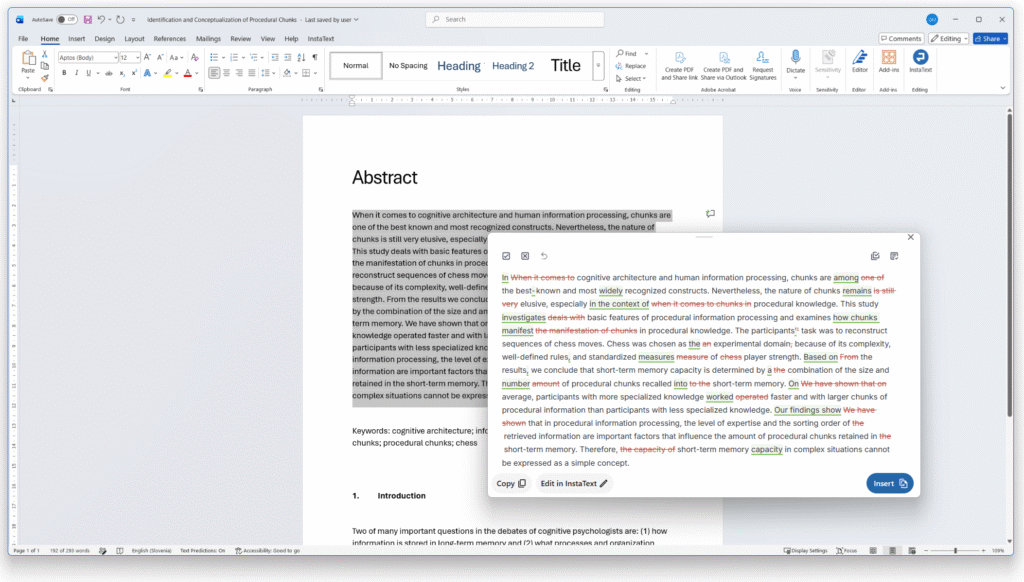
- Compact view opens over the application you are writing in, so you can review, accept, or reject suggestions without leaving your document.
- Editor view gives you a full workspace with the original and improved text side by side. You can review suggestions and edit the text directly before using the final version.
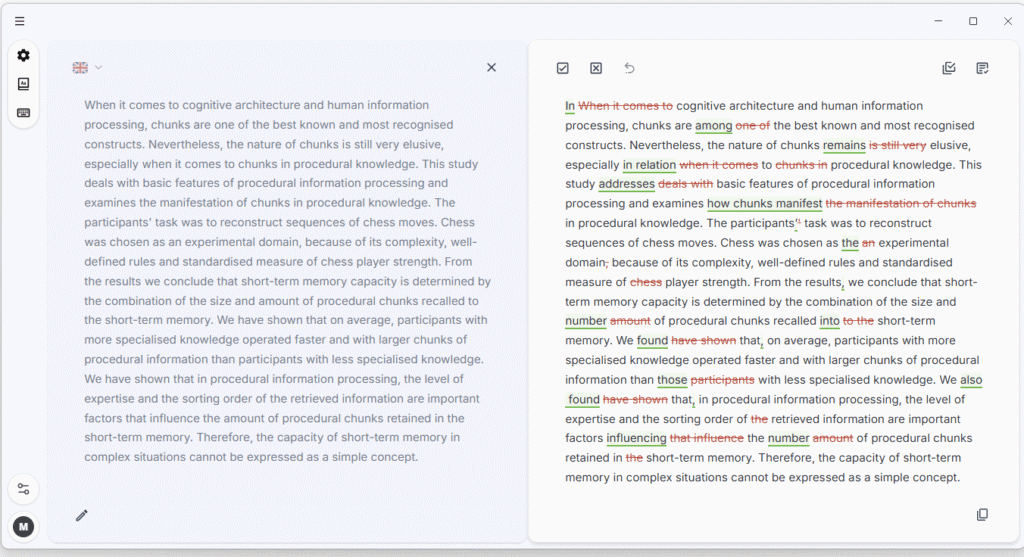
Note: The “Always on Top” option keeps the InstaText Editor view visible above your writing application, even when that application fills the screen, so you can work in InstaText without switching between windows.
You decide what changes
Every suggestion is visible and every change is optional. You decide what to accept or reject, making it easier to spot changes that may affect the intended meaning.
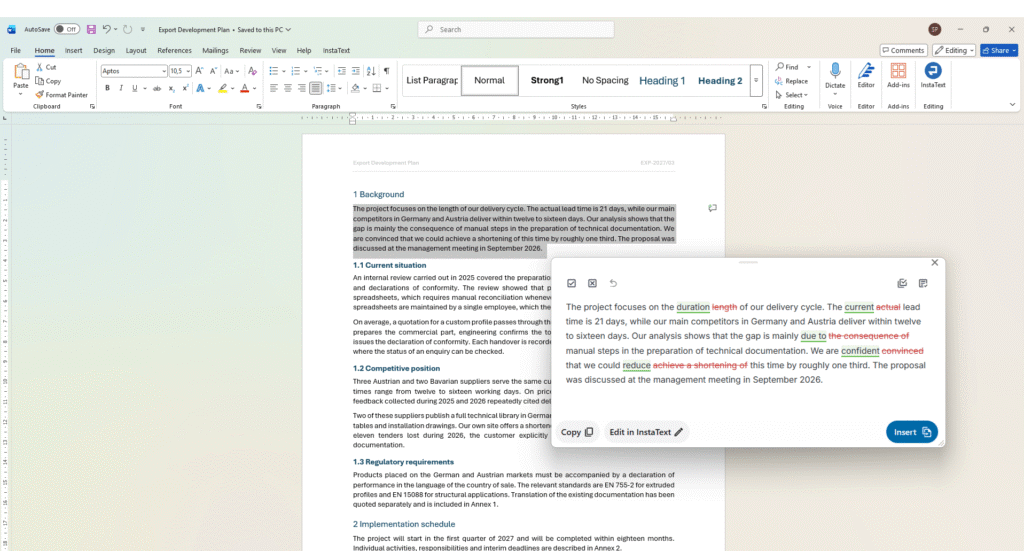
InstaText helps improve clarity, readability, flow and word choice based on the text you provide. You review the suggestions and decide what goes into the final version.
Professional editing across languages
InstaText provides deep, high-quality editing in English, German, Spanish, Italian, French and Portuguese, plus one local language in 40+ countries.
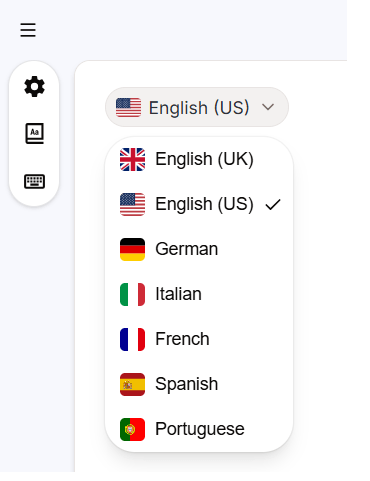
The same desktop workflow is available for supported languages, whether you are working on professional, academic or everyday writing.
Editing features on desktop
The desktop application includes core InstaText features already available through the web editor:
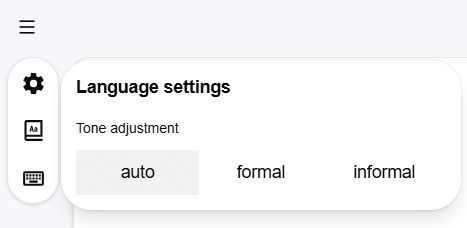
- Tone adjustment: choose Auto, Formal, or Informal.
- Personal Dictionary: specify words or phrases InstaText should not change, or set preferred replacements.
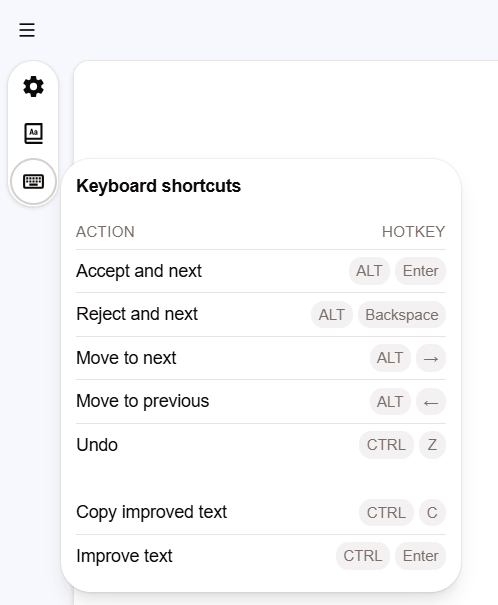
- Keyboard shortcuts: accept or reject suggestions, move between changes, undo, copy improved text, and improve text.
Desktop settings and controls
It also includes controls for adapting InstaText to the way you work:
- Customisable shortcut: change the keyboard shortcut used to improve selected text.
- Light and dark themes: choose the appearance that suits your workspace.
- Zoom and display: zoom in or out, return to actual size, or switch to full-screen mode.
- Always on Top: keep the InstaText Editor view visible above other windows.
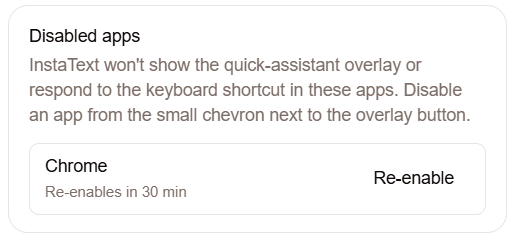
- Application controls: pause or disable InstaText for individual applications.
Pause or disable InstaText in individual applications
You can control where InstaText is active without turning it off everywhere.
For an individual application, you can:
- Pause InstaText for 30 minutes
- Disable InstaText permanently
- Re-enable a disabled application later from Settings
This can be useful in applications where you select text frequently for copying and pasting, or where Ctrl+D is already used for another function. Note that you can customise the shortcut in Settings.
Report an issue
You can report an issue directly from the InstaText application menu.
When you create a diagnostics report, InstaText gathers recent logs, application and system information, current settings, and recent crash reports into a file that can help investigate the problem.
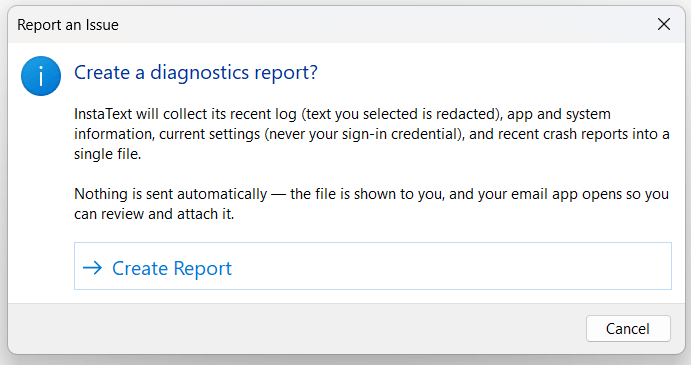
Selected text is redacted from the log and sign-in credentials are never included. The report is not sent automatically. You can review the file before attaching it to the email created for the support team.
Updates
When a new version of the application is available, a blue Update button will appear. Click it and the application will update in the background. While no system restart is required, the application itself will get restarted. You can also check for updates from the application menu.
Bring InstaText to your desktop
InstaText is trusted by more than 3 million users worldwide. It can also be used through its web editor, Microsoft Word add-in, and browser extension, which supports more than 20 online platforms. The desktop application extends that flexibility to the applications you use on your computer.
Available with your InstaText account, including the free plan.
We welcome feedback on the desktop experience as InstaText continues to improve and evolve around how people use it for academic, professional, and everyday writing.
What our users say
“I am a translator and proofreader by profession and have tried many editing tools. It’s not an exaggeration to say that all the other apps I’ve used so far don’t come close to InstaText. It is literally innovative and revolutionary and has taken the editing game to a new level, leaving other competitors in the dust.”
— Dr. Ghodrat Hassani, Researcher in Translation Studies
“InstaText is a great tool! I use it to improve English texts such as articles, projects and abstracts for conferences. The tool provides very useful suggestions that help me to translate the text to a professional level so that no additional review by “native speakers” is required. The time and money savings are obvious. I highly recommend it!”
— Janez Konc, Senior Researcher
“I work in marketing, where I also do a lot of content creation, so InstaText and I have become good friends. It helps me polish my English texts every day at work. Not only is it a proofreading tool, but it also makes the text sound better. The AI behind it works great. I used to use Grammarly, but Instatext does a better job for me.”
— Barbara Viskovic, Marketing And Public Relations Specialist

